
Load-balancing (auto-assignment)
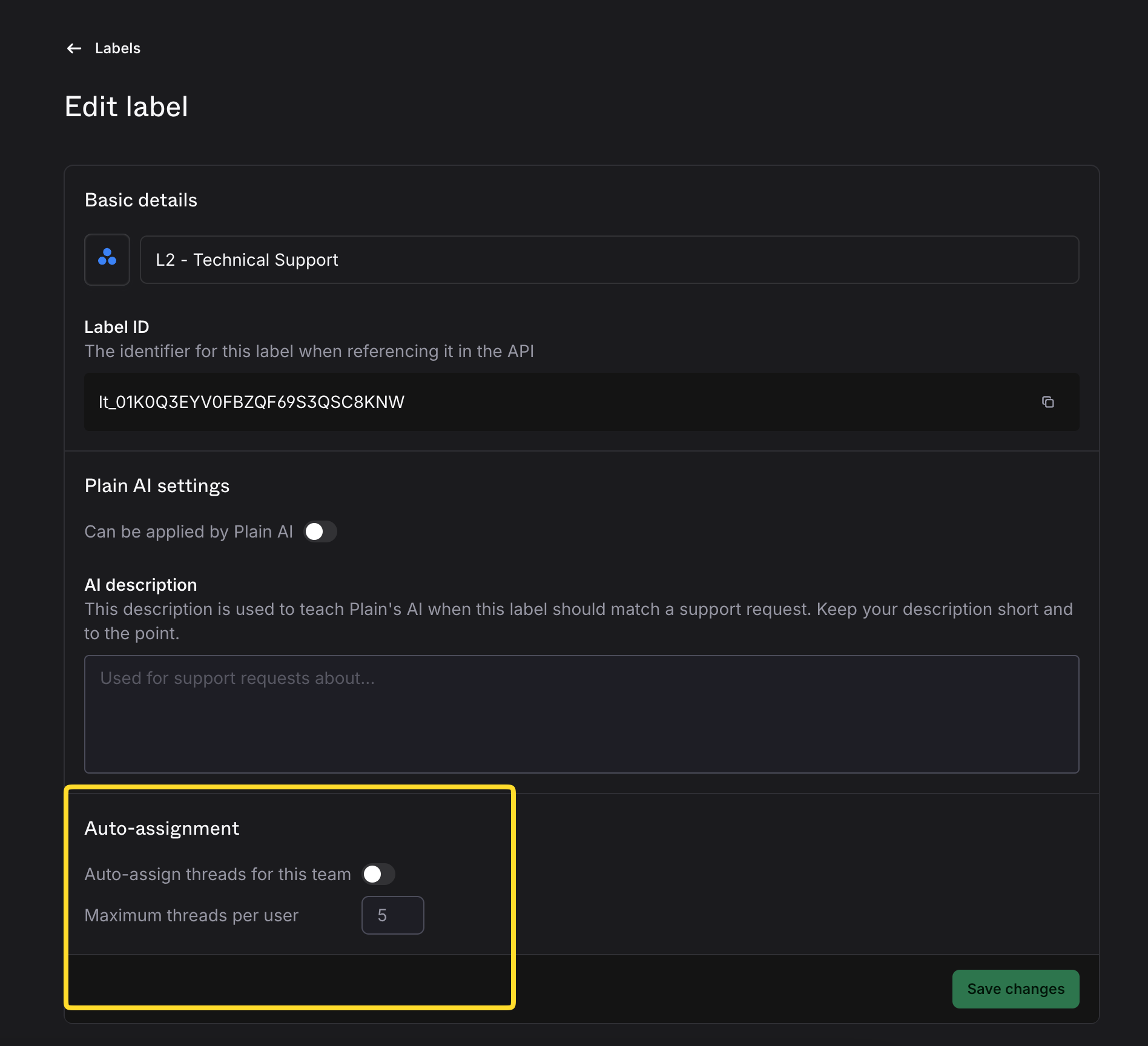
You can enable auto-assignment in your team's settings to automatically distribute incoming threads across your team members so no one gets overloaded.
How it works
When a thread has the team label assigned the auto-assignment process: collects all members of the selected team, filters out teammates who are Away or at capacity, and assigns the thread to the eligible teammate with the lowest current load.
Set it up
Create (or confirm) your team - Go to Settings -> Labels and add your team and its members.
Enable Auto-assignment - Toggle Auto-assign threads for this team.
Set a max capacity – this is the maximum number of Todo threads an agent can hold before they're skipped in the rotation.
Save - New matching threads will now auto-assign.
How the algorithm works
When a thread needs to be assigned, Plain picks the best available agent by checking:
Availability – agents with status Away, Break, or Offline are skipped
Capacity – agents who've hit their max capacity are skipped
Least loaded – among eligible agents, the one with the fewest assigned threads gets picked
When assignments trigger
Auto-assignment fires automatically when:
A new thread is created with a team label
A team label is added to an existing thread
A thread is marked Done or Snoozed (freeing up capacity → backfills other threads)
A thread is reopened (goes back to Todo unassigned)
An agent comes back online (their teams get backfilled)
Things to know
If no agents have capacity, the thread stays unassigned until someone frees up
Auto-assignment only assigns threads with Todo status that have no existing assignee