
Initial Setup
To setup Plain in your own Teams channels, you'll need to do the following.
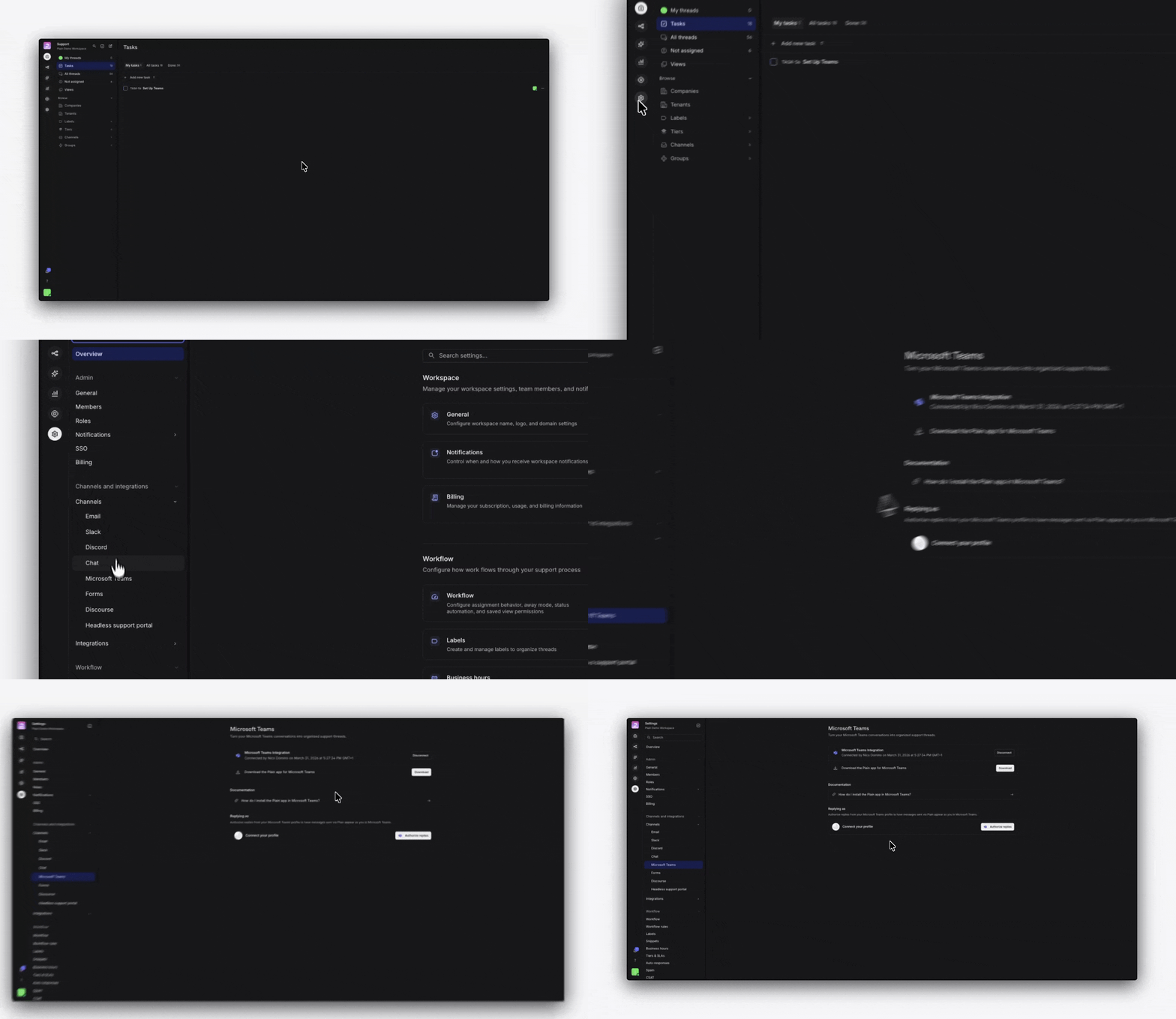
Configuration
In Plain, navigate to Settings → Microsoft Teams.
Press
Connect to Teams.You will be redirected to Microsoft to complete an OAuth admin consent flow. Sign in with a Microsoft 365 administrator account and grant the requested permissions.
Add Plain to Channels
Next, add the Plain app to Teams by installing it from the Microsoft Teams App Store.
Plain can be added to standard channels, chats channels, as well as shared channels.
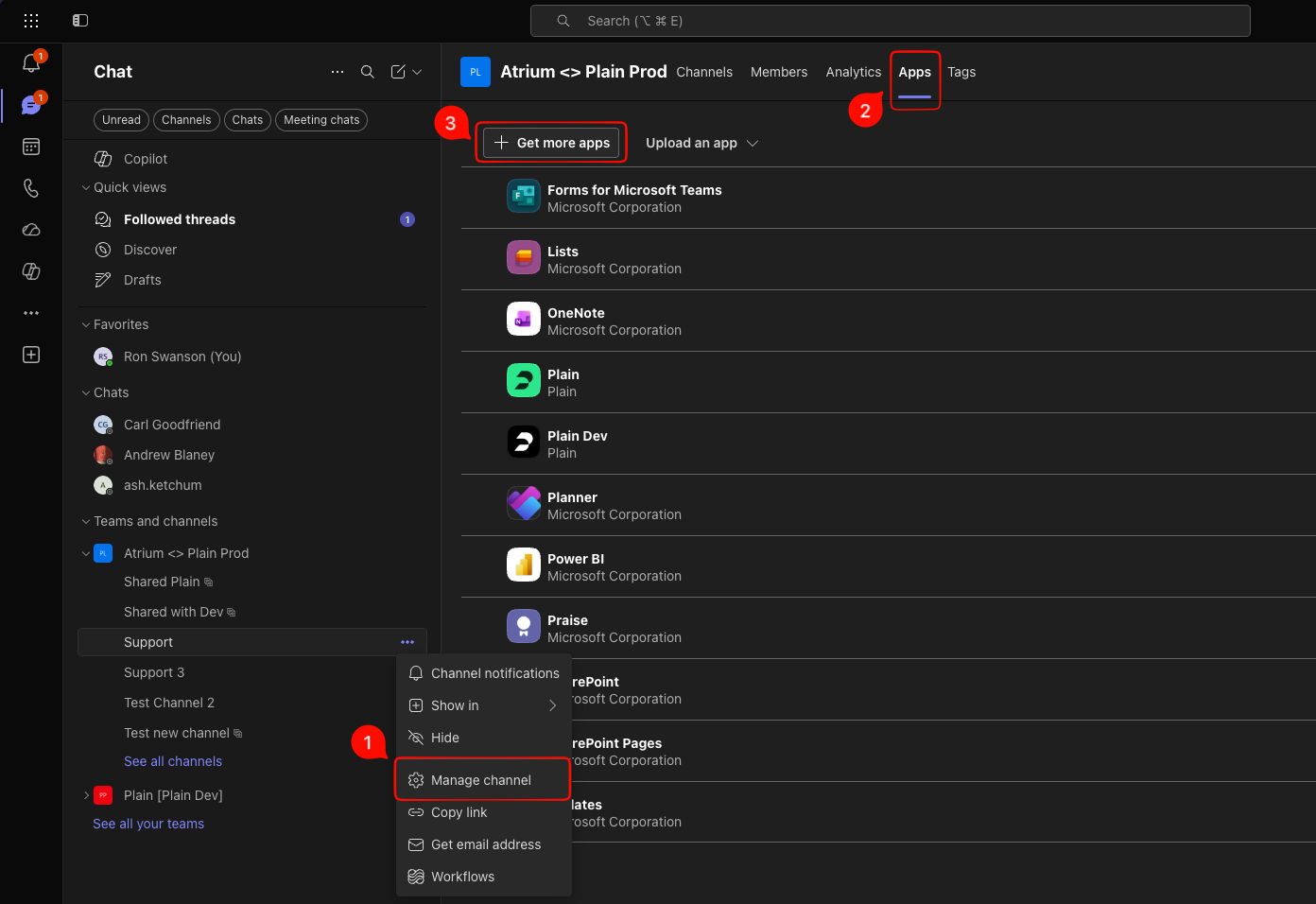
The app can be added to channels by navigating to the "..." overflow menu in the channel list next to either an individual channel name or a whole Team group of channels. From there, select "Manage Team / Channel" and then navigate to the "Apps" tab. Next, select "Get more apps" and search for and select Plain.
How Plain threads are created from Teams
Plain creates threads differently depending on whether a message comes from someone with an account who's email address matches the domain you're using in Plain, or any other user.
Team member messages: Top-level posts from members of your team do not create a Plain thread on their own. A thread is created, however, if someone not on your team replies to that post — at which point Plain backfills the entire conversation (the original post and all replies) into a new thread.
Other messages: Any top-level message from a user not on your team will immediately create a new thread in Plain.
Authorize Teams users in Plain
By default, responses are sent from the Plain bot and will appear with a header indicating which support agent is responding.
To send replies from your own Teams user instead, link your Microsoft account by navigating to Settings → Microsoft Teams and click Authorise replies. This must be done for each support agent in Plain, as they'll each want to use their own Teams accounts.
This is also required if you want to @-mention other Teams users directly from Plain. Replies from Plain with a linked "authorize replies" account will then appear transparently like any other reply in Teams.