
Shared Channels
Plain supports helping your customers via Microsoft Teams Shared Channels.
Getting Started
Providing support via Teams "Shared" channels requires you to add the Plain application to your shared channel specifically. Depending on your Azure security settings, this might require a Teams administrator.
Ensure you have our Teams application version 1.0.8 or greater installed. This will automatically be the case if you use our published Teams App Store application. If you are still using the uploaded zip, you can check the current version in the Teams Admin Portal.
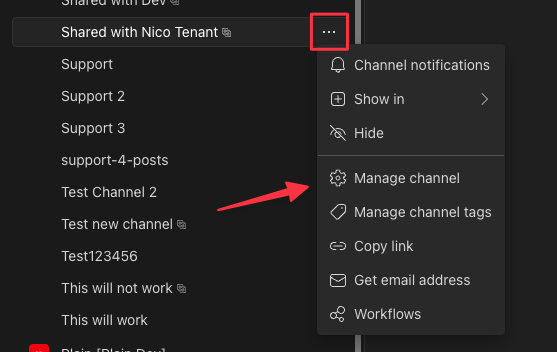
Add the Plain bot to your shared channel by clicking on the overflow menu of your shared channel and selecting "Manage channel".
Go to the "Apps" tab (this might be hidden behind the "+" in the channel view header) and check the box next to "Plain" and select "Add" to add the application to the channel. Ensure the "Added to Channel" column says "Yes".
Any new threads authored in that shared channel by a user who is not also a Plain user (i.e. any messages not from your support agents) will create a new Plain thread.
Troubleshooting
If you cannot invite users from a particular Azure tenant to your shared channel, ensure that Azure B2B Direct Connect security settings are configured on both your and your partner's Azure Entra settings — both must be set to allow one another. See the Microsoft documentation for further info.
If messages don't appear in Plain from your shared Teams channel, you may need to reauthorize the Plain workspace integration:
Go to Plain channel settings for Microsoft Teams and click "Disconnect", then "Reconnect" next to your workspace integration.
When reconnecting, sign in with a Teams Administrator Microsoft account.
Clicking "Disconnect" will not delete any threads or existing data. While disconnected, Plain will not pick up new Teams messages. Reconnecting should only take a few seconds.