
Migrating to the Store app
Plain is now published on the Microsoft Teams App Store. If you previously used the custom application method where you uploaded the .zip file, you can now migrate to the official store version of the Plain Teams application.
Using the App Store version of Plain will ensure that you always receive the latest feature updates and bug fixes. However, the .zip installation will continue to work.
Migrating from the zip to the App Store version of Plain
Migrating to the new App Store version of does not require any changes on the Plain side. While the old app is removed, and before you've installed the new one, your channel will not be sending any messages to Plain. So, while it is a very quick procedure, we recommend you do this during non-peak hours.
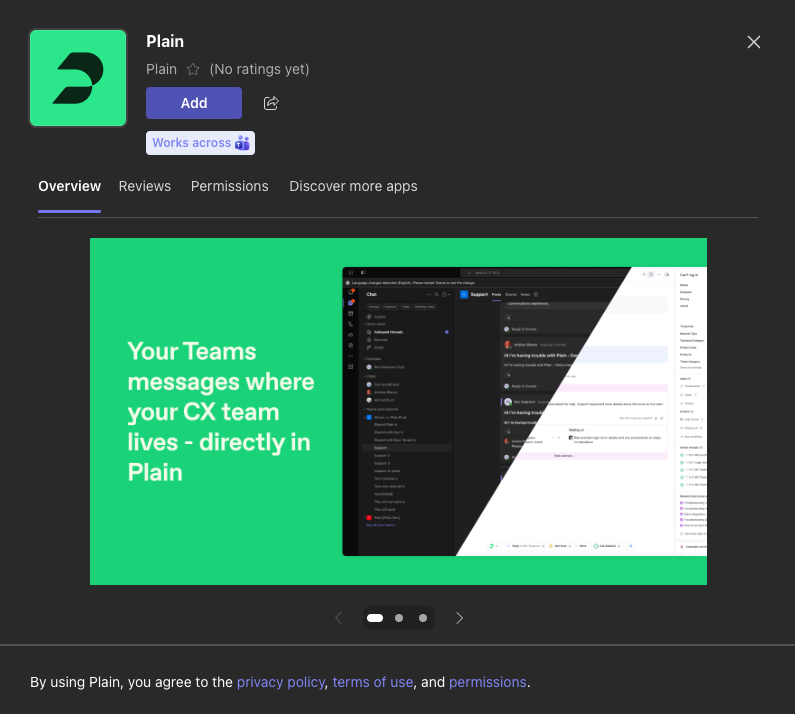
You can always identify the Teams Store version of the application as it will have screenshots in its listing as shown above. The manually uploaded .zip version will not.
Remove the old version of the .zip Plain app from each channel one-by-one and then add the new Plain app to that Teams team / channel again.
Navigate to the "..." overflow menu next to each Team or Channel name and select "Manage Team / Channel" and then selecting the "Apps" tab. There you can remove the old application and add the new one
After adding the new Store-based application to all of your channels, your administrator can uninstall the custom application in the Teams Admin portal.
After updating the installed application in all channels in Microsoft Teams, the migration is complete!