
Overview
Sidekick is your team's AI assistant, built directly into Plain. It knows your product, your customers, and your stack, and it can act across all of them while your team stays in control.
You can ask Sidekick to investigate an error, catch you up on an account, triage a new thread, draft a reply, or run a report. It pulls the context first, then reasons, so it starts working before anyone has finished reading the thread.
How Sidekick works
Sidekick's capabilities build on each other:
It reads everything that matters before it answers: the full thread, attachments, the customer's history, similar past threads, and your knowledge sources.
It reaches into your tools. Connect the tools your team already uses and Sidekick can look things up across all of them (see Tools and integrations).
It takes action, with approvals. Low-risk actions run automatically; anything irreversible waits for your explicit approval (see Actions and approvals).
It can work on its own. Workflows can start a Sidekick session automatically, on a trigger or on a schedule (see Sidekick in workflows).
Where you use Sidekick
Home
Home is Sidekick's own space, in your workspace's navigation bar. It's where you use Sidekick at the workspace level, across your whole queue, rather than on one thread.
Open Home and you get a greeting, a set of example prompts that rotate to show what Sidekick can do, and a composer. Ask something like "What needs my attention right now?" and Sidekick pulls SLA breaches, the threads that have waited longest, and anything that escalated overnight, across your entire queue.
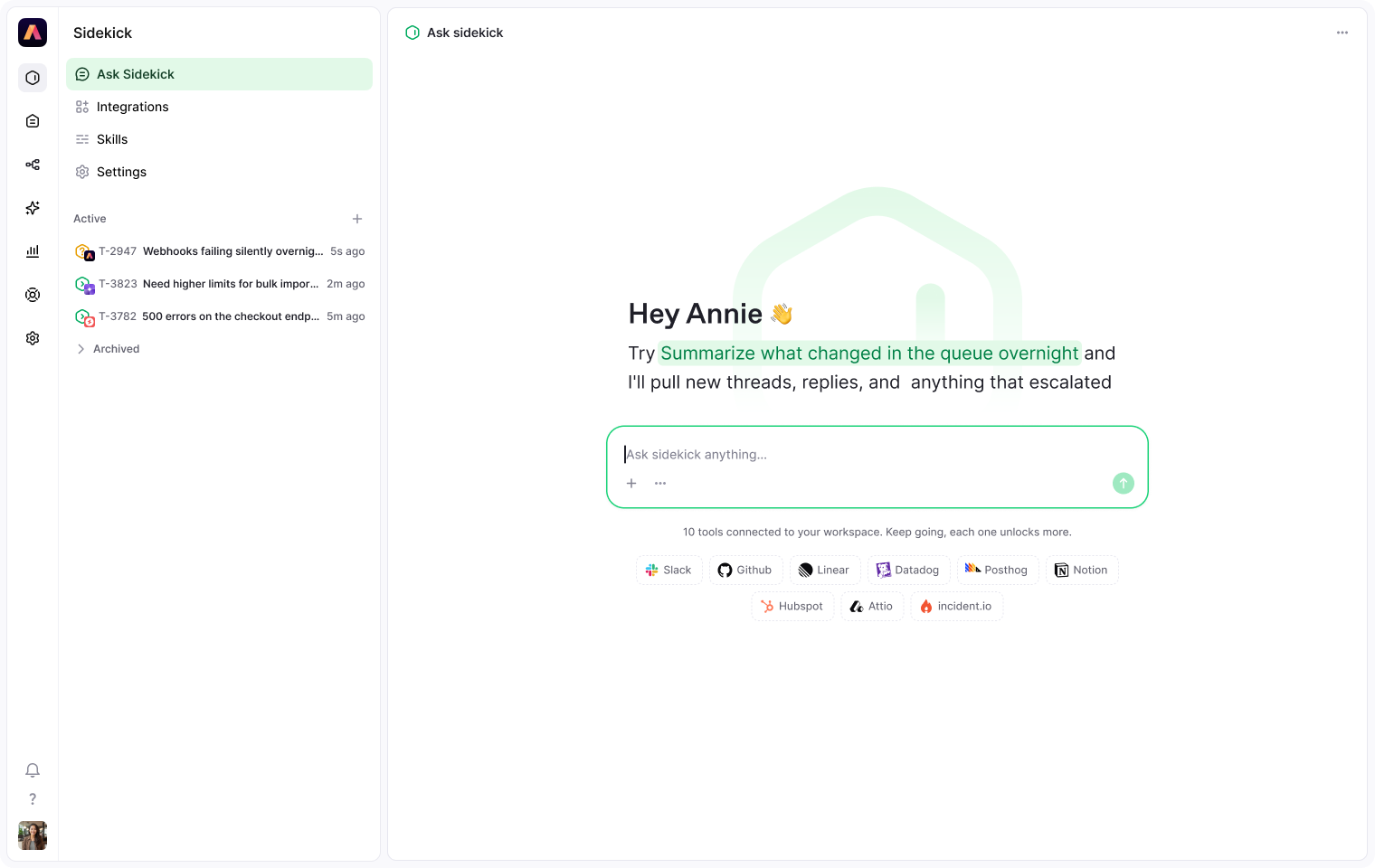
Once you send your first message, the page moves into a conversation. Past sessions live in the sidebar and in a shelf at the bottom of the screen, so you can reopen one in place or detach it into a floating panel next to a thread. Sessions started anywhere, from a thread, a keyboard shortcut, or a workflow, all show up here.
The connect-tools area on Home shows exactly which tools are connected and prompts you to fill the gaps. The more you connect, the more Sidekick can see.
In a thread
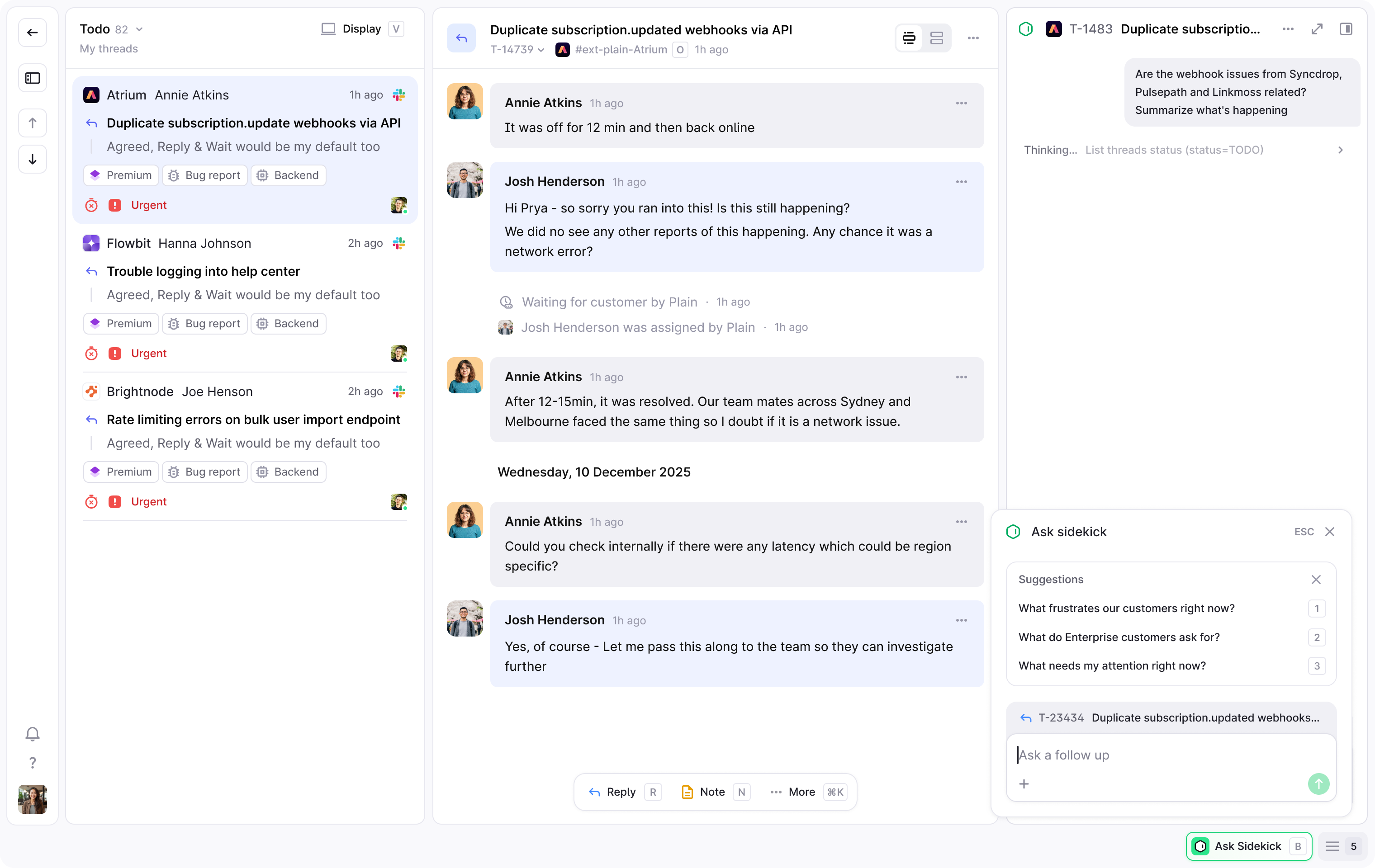
Open Sidekick from any thread by pressing B or clicking Ask Sidekick at the bottom of the screen. A banner above the composer shows the context Sidekick has, in this case the single thread you're viewing. Ask it to investigate, summarise, draft a reply, or act on the thread.
On a company or tenant page
Sidekick can read a customer's full support history from their Company or Tenant page. See Sidekick on companies and tenants.
In Slack
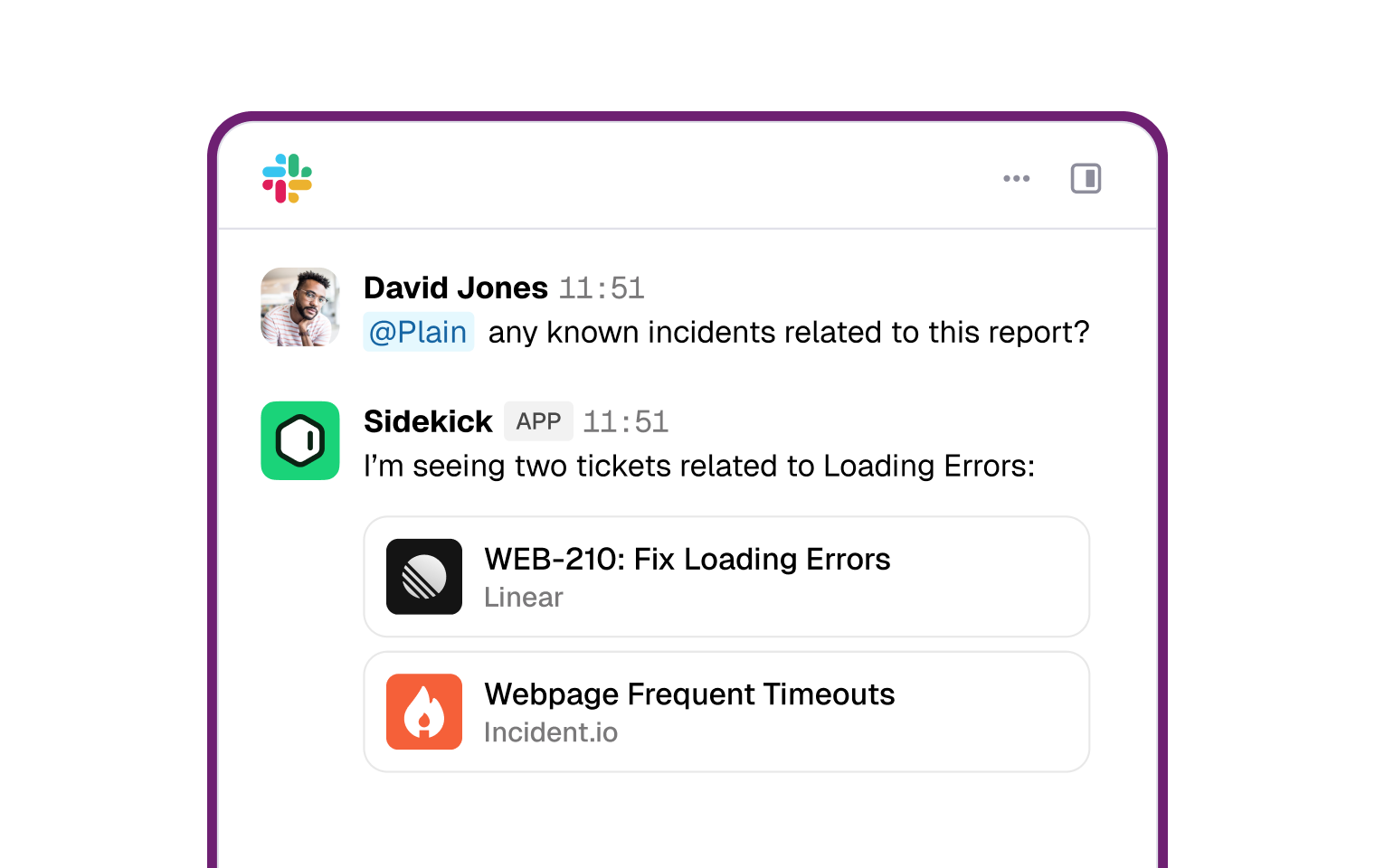
Your whole team can use Sidekick from Slack by @mentioning it in a connected channel, with no Plain seat required.
What Sidekick can see
Every time you open a thread, Sidekick already has context. Without being asked, it reads:
The full thread timeline: every message, internal note, status change, label, assignment, SLA transition, and any custom fields your team uses
Attachments, including their contents
The customer's profile, their company and tier, and every other thread they've opened
Similar past threads, found semantically, even when the wording is completely different
Your help center and any indexed knowledge sources
How to enable Sidekick
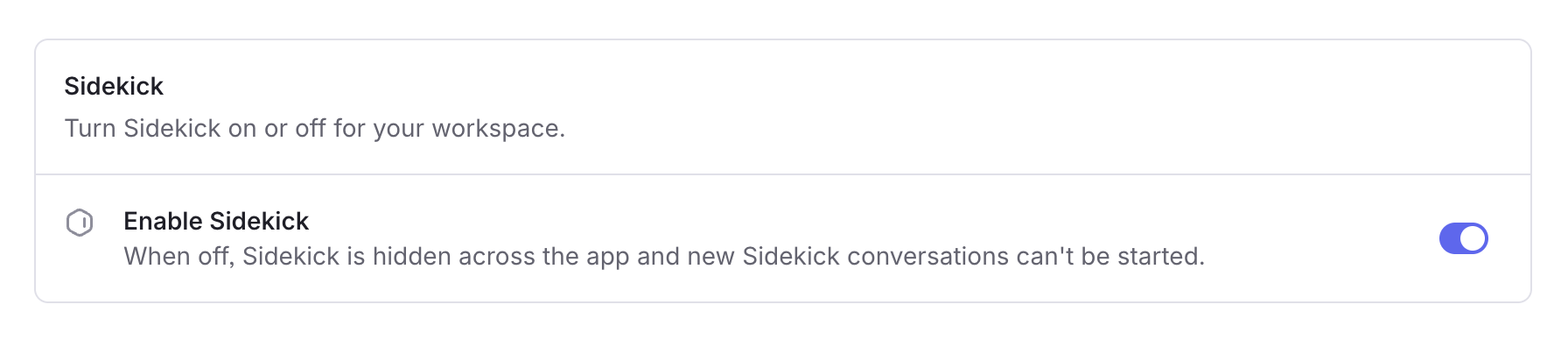
Sidekick is available on all plans with Plain AI enabled. A workspace Admin or Owner enables it in Plain AI → Sidekick.
Each plan includes a monthly credit allowance, and Sidekick usage draws from it. See Credits for details.
Who can use Sidekick
By default, Sidekick is available to all roles in your workspace, including Viewers. A workspace Admin or Owner can restrict this in Sidekick → Settings.
Viewer access on (default): Everyone, including Viewers, can use Sidekick inside Plain and via Slack (by @mentioning it in a connected channel).
Viewer access off: Only Support users and above can use Sidekick, both in Plain and in Slack.
Your sessions
Your Sidekick sessions are private to you. They're saved across threads and pages, and you can pick up where you left off from the sessions shelf at the bottom of the app. As Sidekick works, you can watch its tool calls on screen in real time: what it's searching, what it's checking, and what it found.