
Sidekick in Workflows
Workflows can start a Sidekick session on their own, triggered by what happens in your queue or by a clock, so work gets done before anyone opens the app.
This article covers how Sidekick fits into workflows. For how to build and configure workflows in general, see the Workflows docs.
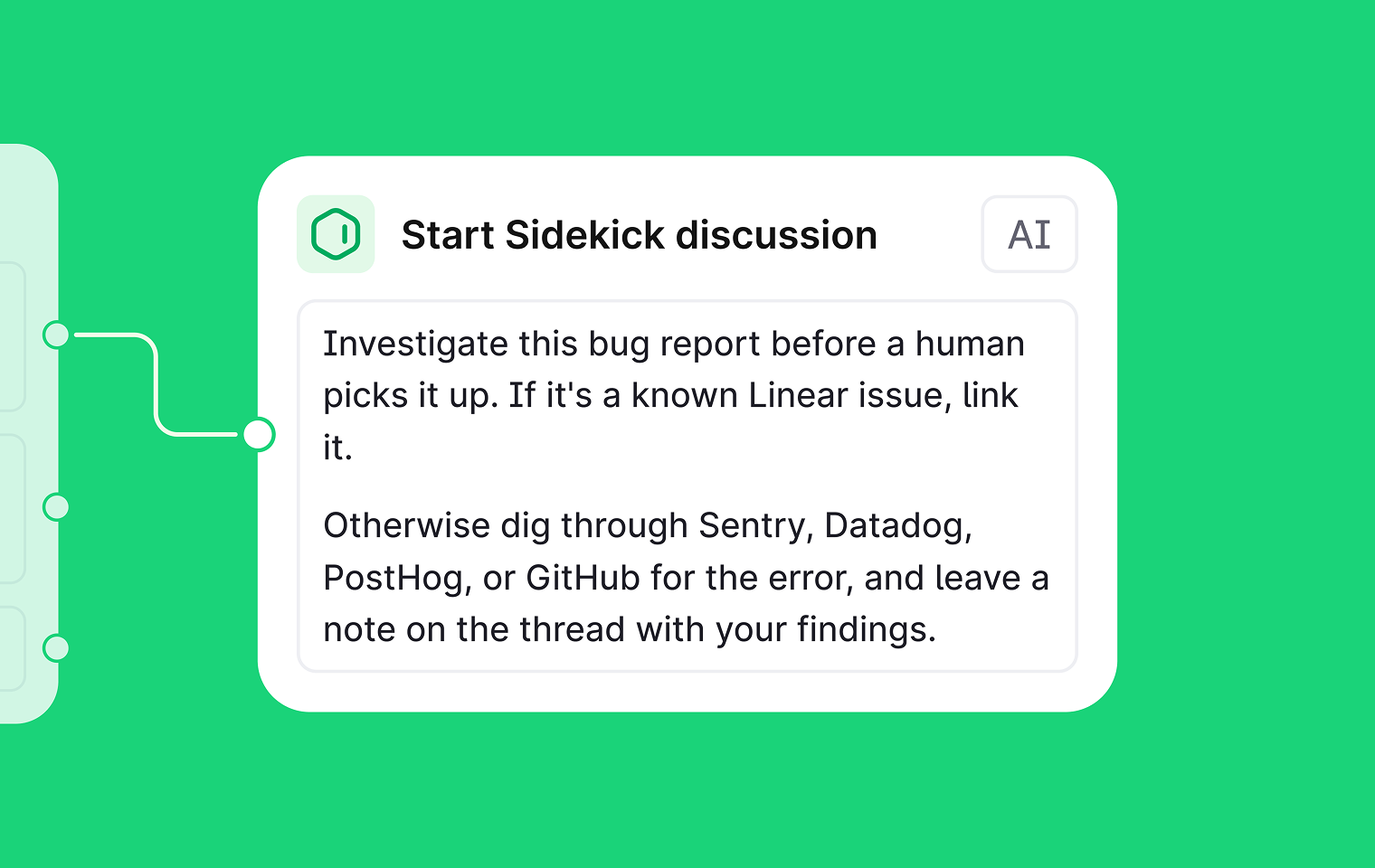
Thread-based workflows
A thread-based workflow fires whenever a thread meets conditions you set.
Triggers include: a new thread arriving, a message added, labels changed, priority changed, tier updated, an SLA status transition, a thread escalated, thread fields set or updated, a thread locked, or a customer survey response landing.
Conditions narrow it further: company, tenant, tier, channel, label, SLA state, or thread fields.
Steps then run automatically: reassign, reprioritise, label, notify in Slack, fire a webhook, or start a Sidekick investigation.
For example, a workflow fires on new enterprise threads: Sidekick matches them against active errors and monitors in Datadog and Sentry, sets a label and priority, assigns the right team, and posts its findings as an internal note.
Scheduled workflows
A scheduled workflow runs on a cron schedule with no trigger thread. It fires at a set time, runs its steps, and completes.
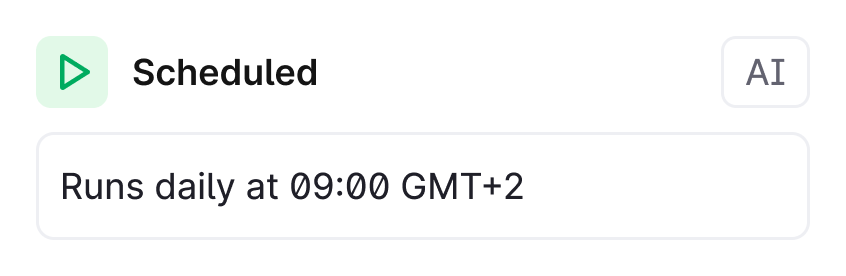
A scheduled workflow can include a start a Sidekick discussion step. The workflow parks while Sidekick works, then resumes once it's done. This makes fully autonomous reports possible: a structured briefing every morning without anyone asking for it.
Morning queue brief. Every morning, a scheduled workflow has Sidekick pull breaching and near-breach threads, check their linked issues, and add discussion context, so the team walks in to a ready-made triage summary.
Weekly support digest. Every Friday, Sidekick counts threads opened, resolved, and breaching, checks linked issues, reads high-activity discussions, and posts a structured digest to Slack.
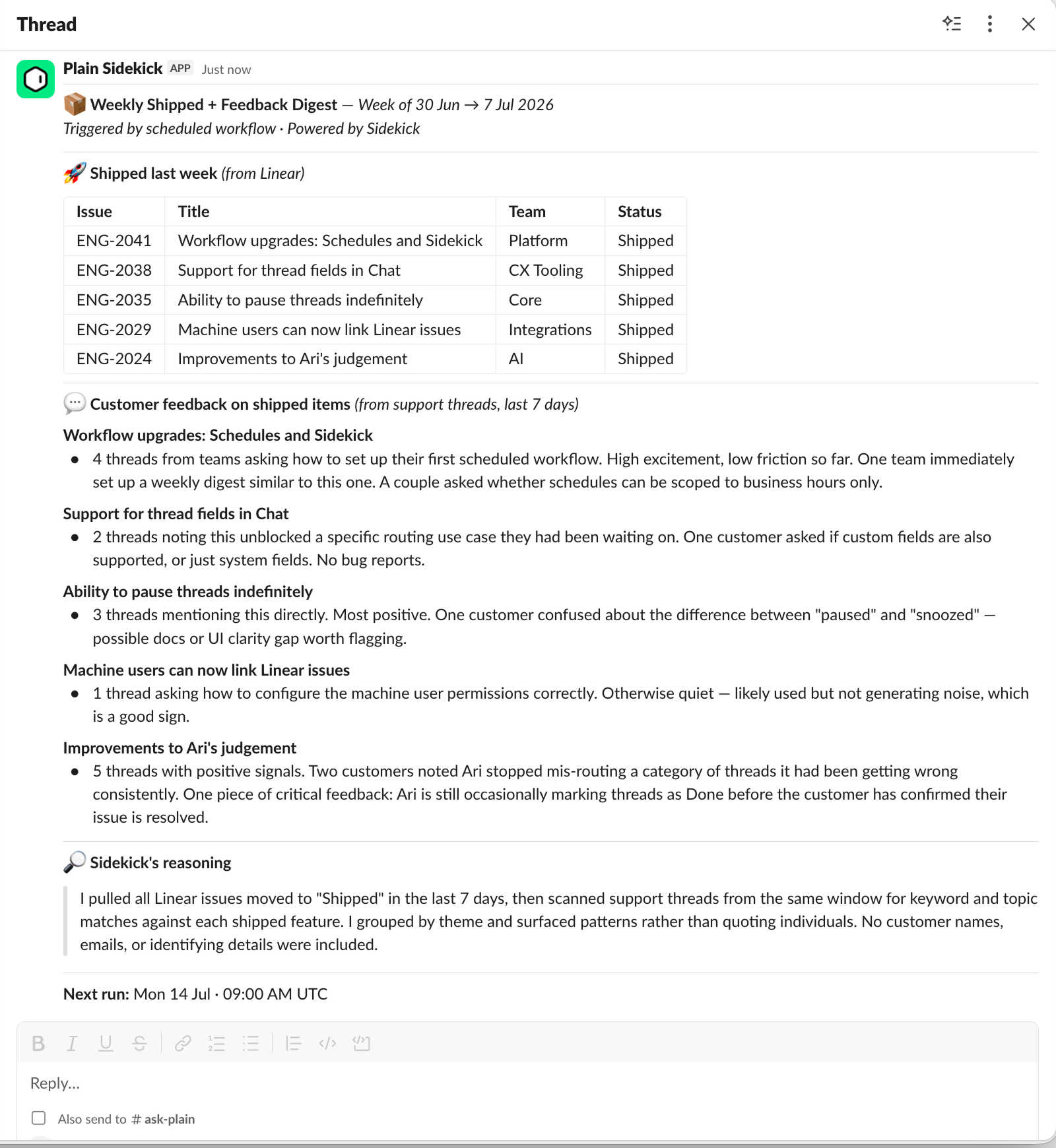
Where sessions show up
Sessions that a workflow starts run on the same engine, tools, and approval rules as any other Sidekick session, and they appear alongside your own in Home and the sessions shelf. Workflow-created discussions are visible to your workspace; personal sessions stay private.