
Set up email receiving (forwarding)
To receive customer emails in Plain, you need to forward messages from your support address (e.g. support@example.com) to your Plain workspace's inbound address. Once set up, every customer email will appear in Plain as a thread.
You can find your Plain inbound address in Settings → Email in your workspace.
CC'd recipients on inbound emails are not currently displayed in Plain or preserved on outbound replies. If you need to keep other parties in the loop, consider using BCC email addresses (see below).
Google Workspace
Open the Gmail routing settings in your Admin Console.
Click Email forwarding using recipient address map → Configure or Add another rule.
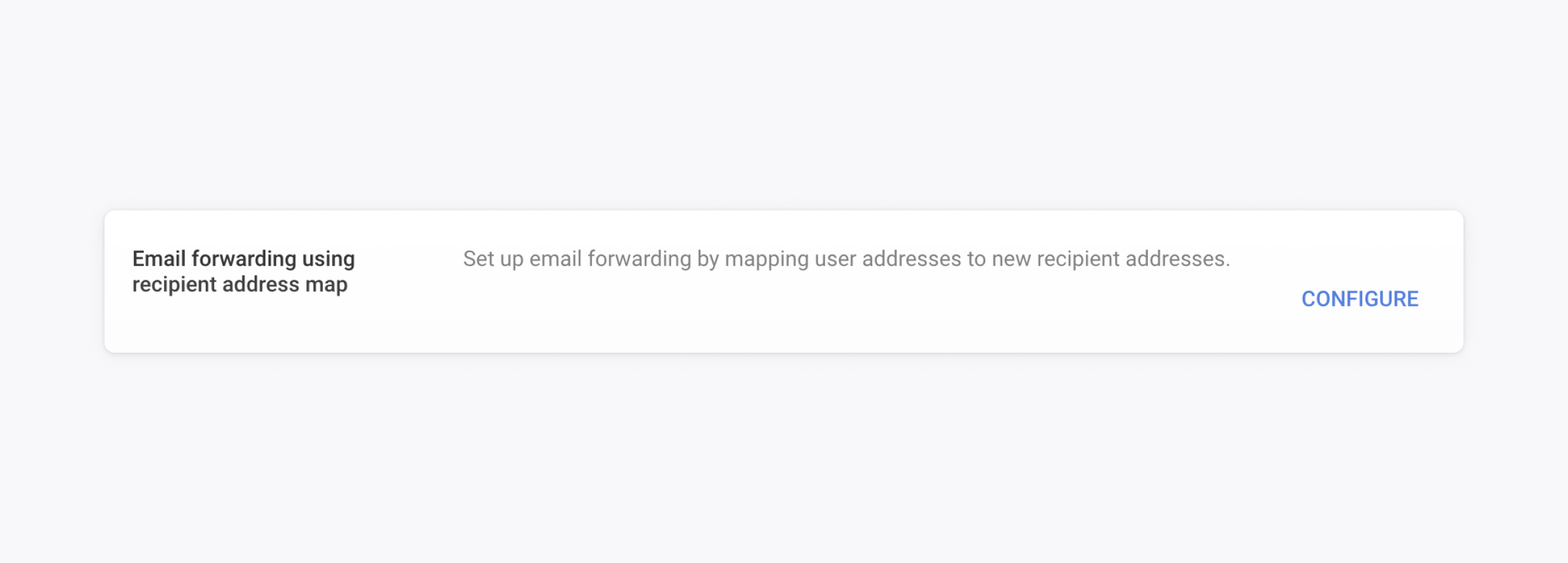
Configure the forwarding rule
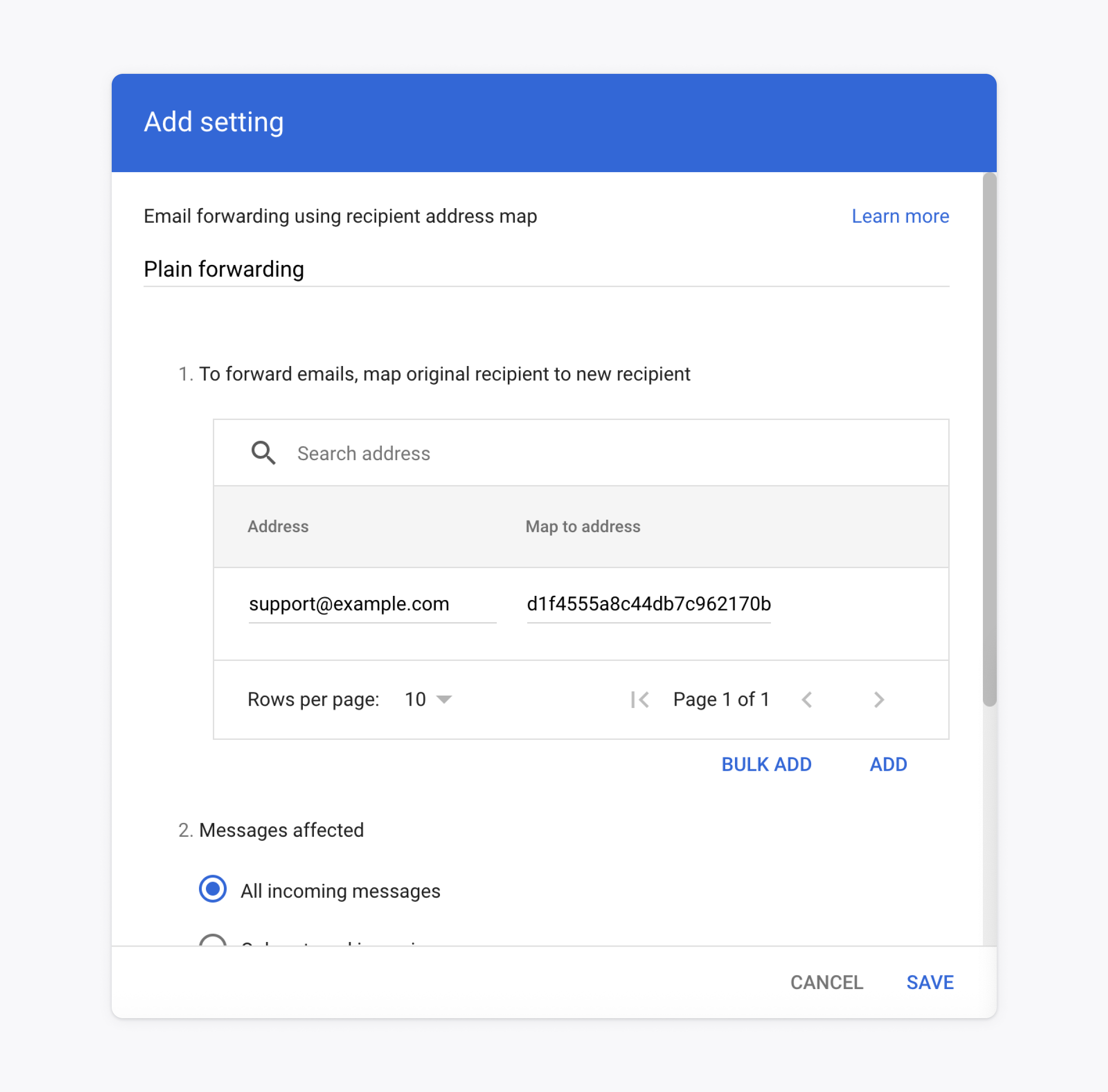
Pick a name for the forwarding rule. For instance:
Plain forwardingEnter your support email under 'Address' (e.g.
support@example.com)Enter your Plain inbound email address under 'Map to address' (e.g.
abcdefg@inbound.postmarkapp.com)Choose 'All incoming messages'
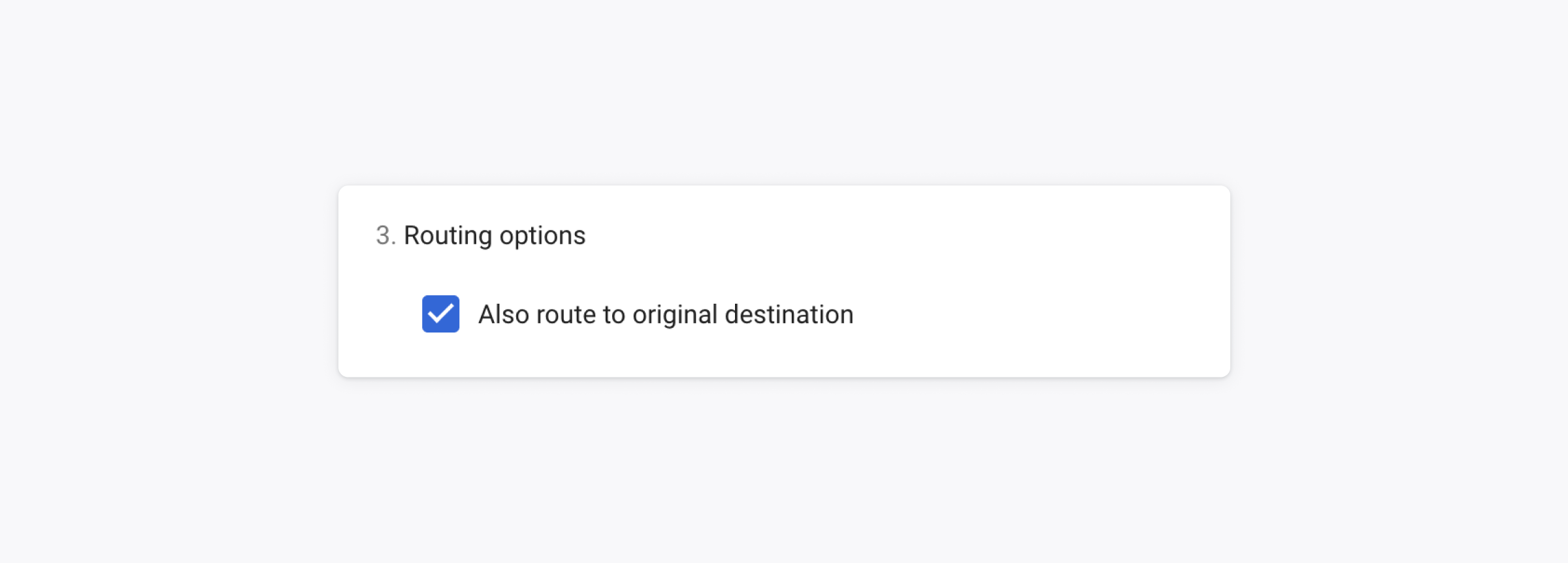
If you also want emails to stay in your original inbox, check Also route to original destination.
Enable this if your support address points to a Google Group and you still want messages delivered there.
Click Save.
Microsoft 365
Sign in to the Microsoft 365 Admin Center.
Go to Exchange admin center → Mail flow → Rules.
Click Add a rule → Create a new rule.
Set the condition: The recipient is → your support email address.
Set the action: Redirect the message to → your Plain inbound address.
Save and enable the rule.
Other providers
Forwarding can also be configured through your domain registrar (e.g. DNSimple, Namecheap) or any other email host that supports forwarding rules. The goal is the same: any email sent to your support address should be forwarded to your Plain inbound address.
If you need help configuring this, get in touch and we'll walk you through it.
Archiving inbound emails (Google Workspace)
To keep copies of all inbound emails for compliance or audit purposes, set up a secondary routing rule in Google Workspace that delivers a copy to a separate archive address.
Go to Default Routing in Gmail settings.
Click Configure or Add another rule.
Under Specify envelope recipients to match, choose Single recipient and enter your support email (e.g.
support@example.com).Scroll down, tick Add more recipients under Also deliver to. Click Add and enter a dedicated archive address (e.g.
support.archive@example.com).Click Save, then scroll down and select Perform this action on non-recognised and recognised addresses. Click Save again.
Always use a separate address for your archive — never the same as your support inbox, or it may cause issues processing emails in Plain.
Archiving outbound emails (BCC)
To keep a copy of all emails your team sends to customers, set up BCC email addresses in Settings → Email.
Plain will automatically add your configured BCC addresses to every outbound message sent to a customer — without affecting the email your customer receives. This applies to messages sent by workspace members, not system notifications.
You can configure up to five BCC addresses. They cannot be the same as your primary support address or any alternate address.
Common uses:
Compliance and audit archives
Feeding outbound emails into a CRM or external system
Spoofing detection
Plain runs authentication checks on every inbound email to estimate whether it was genuinely sent by the address it claims to be from. Each email is classified as PASS, FAIL, or UNKNOWN.
The checks use SPF, DKIM, DMARC, and related forwarding headers. When those are missing or inconclusive, we use a leading email spam platform as a fallback signal.
FAIL: checks strongly suggest the sender could be spoofed
UNKNOWN: not enough data to make a confident decision
For both FAIL and UNKNOWN, Plain displays a warning banner on the thread. The safest verification step — especially on a FAIL — is to reply and confirm the sender can respond from the same address.