
Email discussions
Email discussions let you loop additional people into a thread via email — whether the thread came in through Slack, MS Teams, email, or another channel. They are part of a broader feature called Thread Discussions.
Thread discussions are never visible to the customer the thread belongs to. They are internal by default.
Prerequisites
Email discussions require the Email channel to be configured in your Plain workspace. If you can already send and receive support emails in Plain, you're good to go.
Starting an email discussion
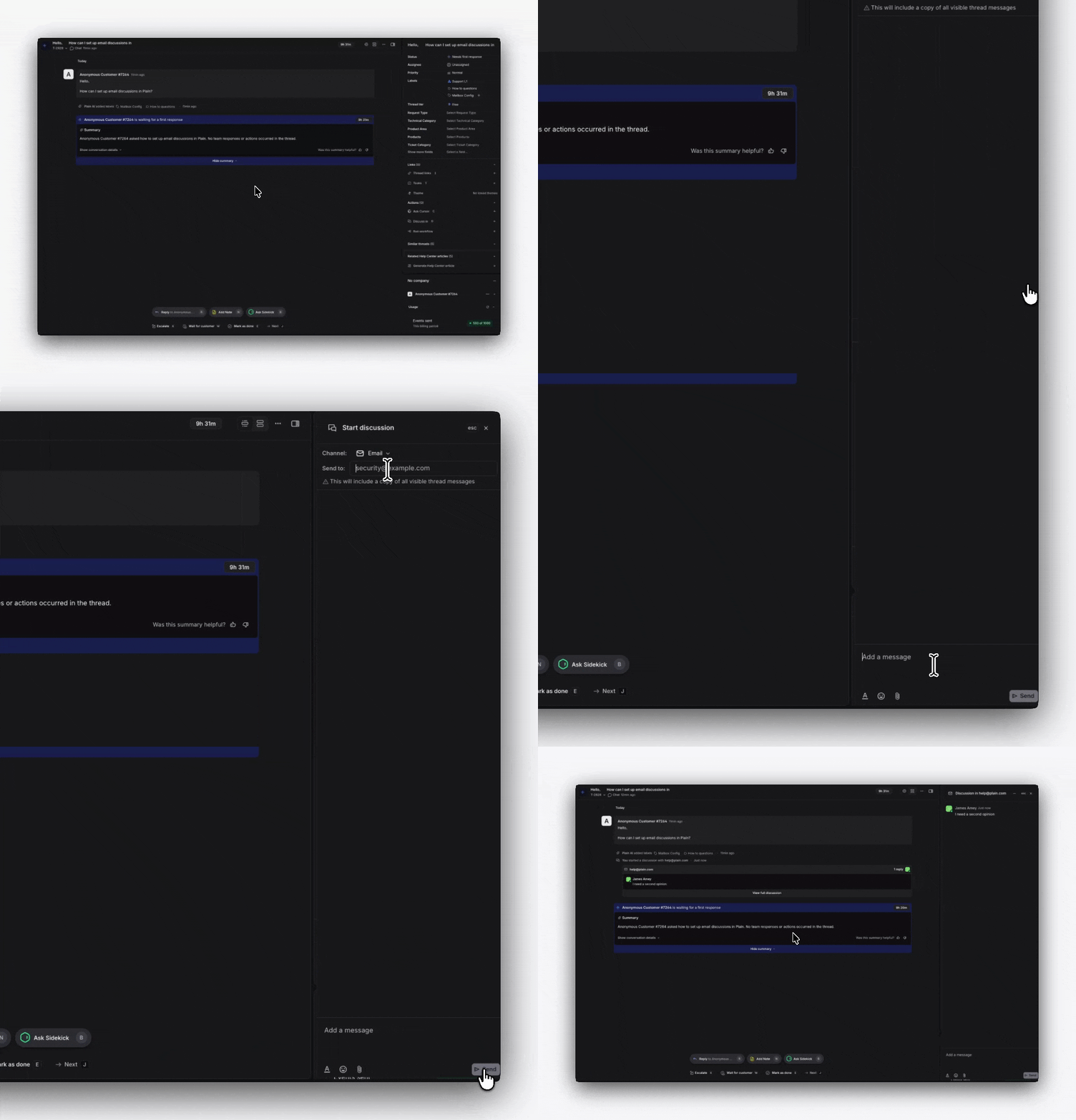
Open a thread and click the + icon in the sidebar next to Thread Discussions. You can also press D on your keyboard.
In the modal that opens, select Email as the channel. If you have Slack connected, you'll see Slack channels listed alongside the Email option.
Enter your recipients and write your message.
Send. Recipients will receive an email containing your message, with all previous thread messages appended below — similar to a forwarded email in their inbox.
The thread history is only appended to the first message of the discussion. Subsequent replies won't re-include it.
Replies
When a recipient replies, their response appears in the Thread Discussions sidebar and in the thread timeline alongside all other thread activity. These replies remain internal — they are never shown to the customer.