
Overview
Workflows let you automate multi-step support processes: route threads, follow up after delays, branch based on conditions, and chain actions together without code. Use them for anything that needs more than a single if-then rule.
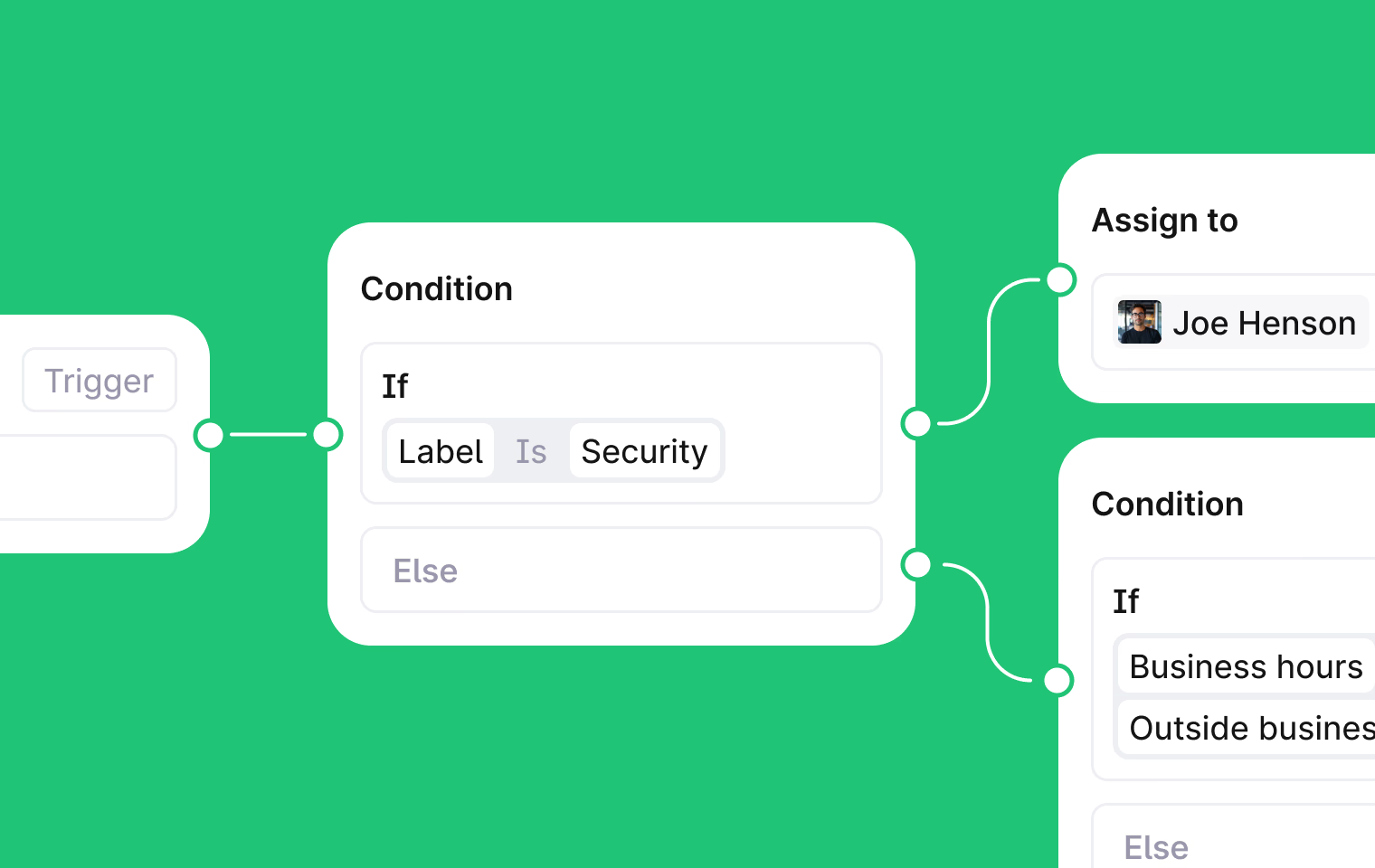
What you can do
Run multi-step automations when specific thread events happen
Take different paths based on thread state, labels, tier, channel, or other properties
Pause for minutes, hours, or days before continuing
Cancel a pause early if something changes (e.g. the customer replies)
Trigger workflows manually on a thread or automatically from events
How workflows work
Every workflow starts with a trigger. You can trigger a workflow manually on a specific thread, or set it to run automatically when something happens (like a thread being created or a message being added).
After the trigger fires, the workflow runs through steps. There are three types:
Condition steps check whether something is true or false and branch accordingly. For example, check if a thread has a specific label and take different paths based on the result.
Action steps do something like assigning a thread, setting priority, or sending a message, then continue to the next step.
Wait steps pause the workflow for a set duration. Each wait step has two outcomes: completed (the wait finished) or cancelled (a cancel condition was met, e.g. the customer replied).
Create a workflow
Go to Workflows in the sidebar.
Click New workflow.
Name your workflow.
Set a trigger. Choose Manual or Automatic, then select the events that should start the workflow.
Add steps. Click the + button on the canvas to add condition, action, or wait steps.
Connect steps. Drag between steps to define the flow. Condition and wait steps have two branches (Yes/No or Completed/Cancelled) that you connect to different next steps.
Click Publish.
Your workflow is now active. Drafts are saved but won't run until published.
Duplicate a step
To reuse a step without rebuilding it, duplicate it. Two ways to do this:
Right-click any node on the canvas and select Duplicate.
Hold Option (Mac) or Alt (Windows) while dragging a node to place a copy at the new position. The original stays in place.
The copy keeps the step's full configuration and branch structure. Connections to other nodes are not carried over — wire the copy into your workflow after placing it.
Limits
Steps can only move forward. No loops
Wait durations: 1 second to 1 year